Create a floppy disk image.
Use BadCopy Pro’s Disk Image Builder to prepare a .BCD image for a support-assisted recovery.
This guide covers the original Disk Image Builder 1.00 utility for floppy drives A: and B:. It is a legacy support tool; contact Jufsoft if your computer or drive does not work with it.
1. Get the Disk Image Builder.
Download the utility ZIP and extract it to a folder on your computer. The archive contains BCDisk.exe and request_form.txt. Open BCDisk.exe.
Download Disk Image Builder2. Select the source floppy drive.
Insert the floppy disk you need help recovering. Choose Drive A or Drive B in Disk Image Builder, then click Start.
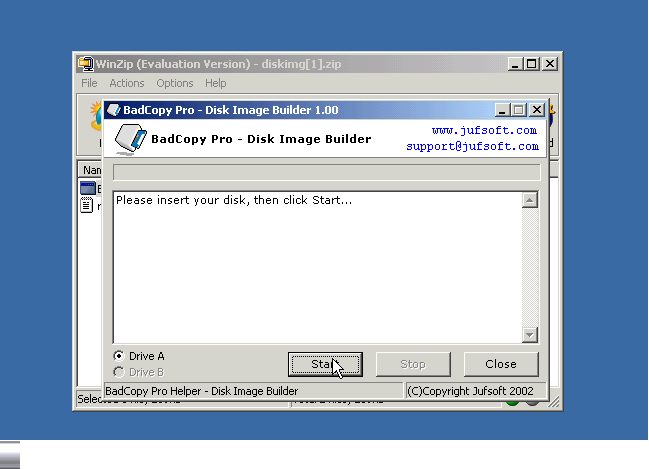
3. Choose where to save the image.
In the save dialog, choose a folder on a healthy hard drive and enter a filename ending in .BCD, such as DiskA.BCD. Click Save. Do not save the image onto the floppy disk you are trying to recover.
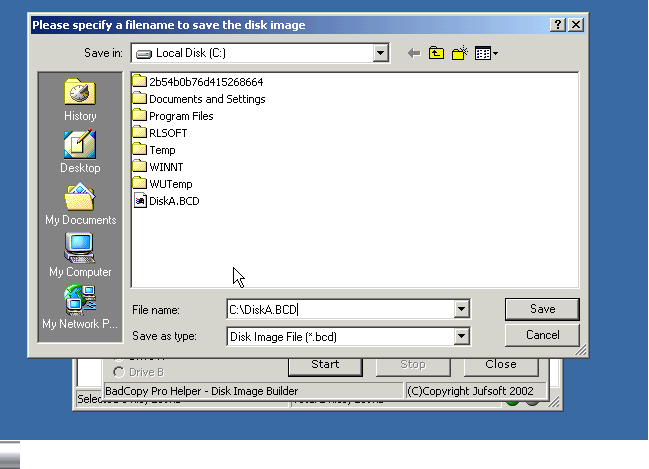
4. Check the result.
Wait while the utility reads and analyzes the disk. Check its log for the saved image’s location and any error messages. If it reports an error, include that message in your support request; a saved file alone does not establish that the image is complete.
5. Prepare your recovery request.
Fill in request_form.txt with your name, email address, BadCopy Pro order ID, and the types, names, and number of files you need recovered. The original request form asks you to send it with the .BCD image to recovery@jufsoft.com.
If you need help building or sending the image, contact Jufsoft support and describe what happened.